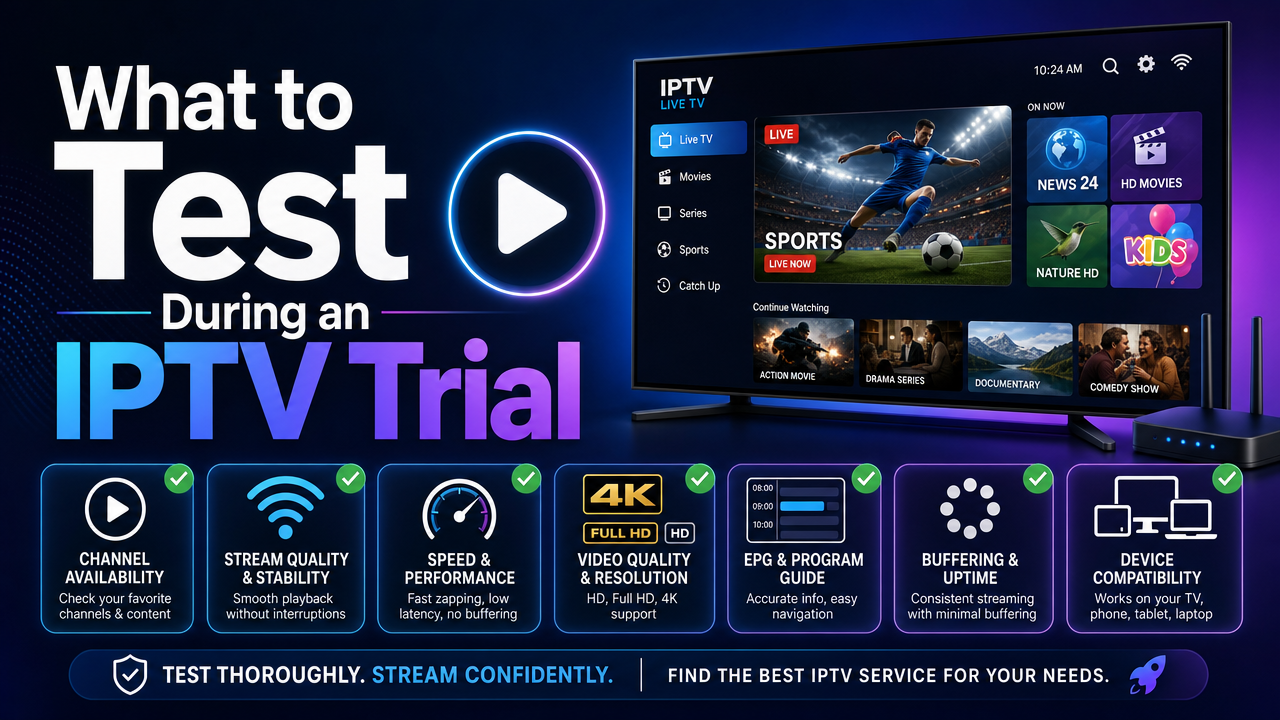
Choosing an IPTV — Internet Protocol Television — service is a decision worth taking seriously, and the best way to avoid surprises is to test before you commit. This IPTV trial checklist UK guide explains exactly what to check during a trial period: channel quality, Video on Demand (VOD), Electronic Programme Guide (EPG), HD and 4K playback, app login, buffering, customer support, and device compatibility. Whether you are streaming in London, Manchester, Birmingham, Glasgow, Cardiff or Belfast, this practical checklist will help you measure real performance on your own broadband, devices, and IPTV apps before choosing a longer subscription.
Why a structured IPTV trial checklist UK matters
An IPTV trial is short, so you need to use the time wisely. A clear IPTV trial checklist UK helps you check the things that actually affect your daily viewing, rather than just clicking through a few channels.
IPTV is a technology that delivers TV content through an internet connection. The experience depends on your broadband, Wi-Fi or Ethernet setup, device, IPTV app, login method, and the service itself. Testing each of these during the trial gives you a realistic picture of how the service will perform long-term.
Trials are also useful for confirming that the IPTV app you prefer — such as IPTV Smarters, TiviMate, IBO Player or Smart IPTV — works smoothly with your TV box or Smart TV. If you want to compare options first, you can learn how to choose IPTV in the UK before starting any trial.
1. Test the channel list and channel quality
The channel list is usually the first thing UK users want to check. UK STREAM PRO advertises around 44,000 channels, but what matters during a trial is whether the channels you personally watch are available, stable, and clear.
What to check on channels
- Open several channels you would normally watch and let each play for a few minutes.
- Switch between channels and time how quickly they load (zapping speed).
- Check for audio sync, subtitle availability where relevant, and picture clarity.
- Test different categories: news, entertainment, documentaries, kids, and international channels.
- Try peak hours in the UK (typically evenings) when networks are busier.
Channel, VOD, EPG, HD, Full HD, 4K, or UHD availability may vary depending on the subscription, device, IPTV app, rights, licences, location, and technical status at the time of use. If a specific channel matters to you, confirm it works during the trial.
2. Test the VOD library
Video on Demand (VOD) means content you can watch on request when available. UK STREAM PRO lists around 186,000 VOD titles, but the trial is your chance to see how the library is organised and whether titles play correctly.
VOD checks to run
- Browse film and series categories — are they well sorted by genre, year or language?
- Open a few titles in different resolutions: standard definition, HD, Full HD, and 4K when available.
- Skip forward and backward in a film to test seeking speed.
- Check loading times for the first few seconds of playback.
- Try a long film to see if playback remains stable.
If VOD is important to you, make a short list of titles you want to test before starting the trial. This saves time and gives you a clearer comparison.
3. Test the EPG (Electronic Programme Guide)
The EPG — Electronic Programme Guide — shows programme times, channel information, and schedules when available. A working EPG makes browsing live TV much easier.
EPG points to verify
- Does the EPG load on your IPTV app (for example IPTV Smarters, TiviMate, or IBO Player)?
- Are the times shown in UK time (GMT/BST)?
- Are the programme names accurate for the channels you watch most?
- Does the EPG show today’s programmes plus future days?
- Can you set reminders or favourites if your app supports them?
EPG behaviour can vary between apps and devices, so test on the app you actually intend to use long term.
4. Test HD, Full HD, and 4K playback
Resolution claims are only useful if your device, broadband, and the content itself support them. 4K is a high video resolution that usually requires a stable connection and a compatible device such as a Fire TV Cube, Nvidia Shield, Apple TV 4K, or a 4K Smart TV.
Resolution checks
- Test HD channels on a strong Wi-Fi 6 or Ethernet connection.
- If you have full fibre (FTTP) from BT, Virgin Media, Hyperoptic or another provider, try a 4K title to see real performance.
- Compare the same channel or film between Wi-Fi and Ethernet if possible.
- Watch for sudden drops in quality — these can point to network or server issues.
Do not assume every channel or title is in 4K. Resolution depends on the source and rights of the content.
5. Test app login and setup
Most IPTV trials use either an M3U playlist link or Xtream Codes login. M3U is usually a playlist link or file format used by many IPTV apps. Xtream Codes typically uses a server URL, username, and password.
Login points to test
- Does the login work first time without errors?
- Does the app save your login so you don’t need to enter it again?
- Can you use the same login on the apps you prefer (IPTV Smarters, TiviMate, IBO Player, Smart IPTV, GSE Smart IPTV, or VLC)?
- How long does the channel list take to load after login?
- Do favourites and recently watched lists save properly?
If you need help with setup during the trial, you can read the setup guide or contact UK STREAM PRO support for assistance.
6. Test buffering and connection stability
Buffering is one of the most common complaints in the UK. It can be caused by Wi-Fi issues, an older router, low broadband speed, server load, or device performance — not always the IPTV service itself.
How to test buffering properly
- Run a broadband speed test on the device you will use for IPTV.
- Test the same channel on Wi-Fi and on Ethernet if your device supports a cable connection.
- Watch during peak hours (around 7pm–11pm) and during quieter times.
- Try at least three different channels and two VOD titles.
- Note any patterns — for example, only sports channels buffer, or only 4K content stalls.
If you use BT, EE, Virgin Media, TalkTalk, Vodafone Broadband, Plusnet, Hyperoptic, Community Fibre, or Three 5G Broadband, test results can vary by area and time of day. A stable connection generally matters more than a very high headline speed.
7. Test device compatibility
Device compatibility is one of the most important parts of any IPTV trial checklist UK. Test the trial on every device where you plan to watch, not just one.
Common UK devices to test
- Samsung Smart TV, LG Smart TV, Sony TV, Philips TV, Hisense TV
- Amazon Fire TV Stick or Fire TV Cube
- Apple TV
- Android TV or Google TV boxes
- Nvidia Shield, Android box, IPTV box, MAG box
- iPhone, iPad, Android phone, Android tablet
- Windows PC, Mac, or Linux computer
For each device, check that your chosen IPTV app installs cleanly, that login works, and that the channel list and VOD load correctly. A device that struggles with HD may need an upgrade rather than blaming the service.
8. Test customer support
Good support matters when something does not work. UK STREAM PRO advertises support 12/7, so use the trial to see how responsive and helpful the support team is in practice.
Support checks
- Send a clear question about setup, M3U, Xtream Codes, or device compatibility.
- Note how long it takes to receive a useful reply.
- Check whether the answers are practical and easy to follow.
- Ask about the refund policy and trial details if anything is unclear.
You can reach the team through the contact page or review the FAQ for common questions.
9. Test catch-up and replay (where available)
Catch-up or replay is a feature that may allow users to watch certain programmes after broadcast, if available. Not every channel offers it, and availability depends on rights and the service.
Catch-up checks
- Open a channel that offers catch-up and try a programme from the last 24 hours.
- Check how many days of catch-up are available per channel.
- Test fast-forward and pause during catch-up playback.
- Confirm the feature works on your main viewing device.
Catch-up and replay availability can change, so confirm during the trial rather than relying on assumptions.
10. Test multi-device or multi-screen use
If your household watches on more than one screen at the same time — for example, a Smart TV in the living room and a tablet in the kitchen — check whether the trial allows this and how it behaves.
Some IPTV services allow only one device at a time per login. Confirm the rules during the trial so there are no surprises later. If you need more than one connection, ask support before choosing a longer plan.
11. Check pricing, terms, and refund policy
A trial is also the right moment to read the small print. UK STREAM PRO publishes approximate prices in pounds sterling for its main plans:
- 1 month: approximately £8.64
- 3 months: approximately £22.47
- 6 months: approximately £30.25
- 12 months: approximately £42.34
Activation usually takes around 5 minutes, and accepted payment methods include PayPal, card payment, Apple Pay, and Google Pay. Before subscribing, compare the IPTV package options for the UK and view the current subscription plans to choose the right length.
Also take a few minutes to read the refund policy, the terms and conditions, and the privacy policy. These explain what is included, how billing works, and how your data is handled.
12. Confirm legal use and content availability
IPTV is a technology that can deliver TV content through an internet connection. The legality of any IPTV service depends on rights, licences, authorisation, broadcasting rights, copyright, and the terms attached to the content being provided. Users should only access content in a way that respects copyright and the terms of the service.
For background information, the UK Government copyright guidance on GOV.UK is a useful authoritative source. If a specific channel, VOD title, EPG feature, or replay function matters to you, check availability during the trial before committing.
Quick reference: the IPTV trial checklist UK
Use this short checklist during your trial period:
- Channels load quickly and play smoothly across categories.
- VOD titles open, seek, and play in the resolutions you want.
- EPG displays in UK time with accurate programme information.
- HD, Full HD, and 4K work where your device and connection support them.
- App login (M3U or Xtream Codes) works first time and saves correctly.
- No persistent buffering on Wi-Fi or Ethernet during peak hours.
- Support replies are clear, helpful, and arrive in reasonable time.
- The service works on each device you plan to use.
- Catch-up or replay works where offered.
- Pricing, terms, refund policy, and privacy policy are clear before you upgrade.
Common mistakes to avoid during a trial
- Testing only one channel or one film — try a wider range.
- Testing only on Wi-Fi — try Ethernet for comparison if possible.
- Testing only late at night when networks are quiet.
- Ignoring the EPG and VOD because you “just want live TV”.
- Not contacting support at least once to see how it works.
- Not reading the refund policy and terms before subscribing.
Conclusion
A short trial can tell you a lot if you follow a clear IPTV trial checklist UK. Test channels, VOD, EPG, HD and 4K playback, app login, buffering, support, and device compatibility on your real broadband and devices. Read the terms, refund policy, and privacy policy before committing. When you are ready, start with the UK STREAM PRO free trial, compare current subscription plans, or learn more about IPTV UK with UK STREAM PRO on the homepage.
Frequently asked questions
How long does an IPTV trial usually last?
Trial length depends on the provider. UK STREAM PRO states that a trial period is available — check the current details on the free trial page or contact support for the most up-to-date information before signing up.
What internet speed do I need to test IPTV properly?
A stable connection matters more than a very high headline speed. HD usually needs less bandwidth than 4K. For better stability on a Smart TV, Android TV, Apple TV, or Fire TV Stick, use Ethernet or a strong Wi-Fi 5 or Wi-Fi 6 connection where possible.
Should I use M3U or Xtream Codes during the trial?
Both are common login methods. M3U is usually a playlist link or file added to a compatible IPTV app, while Xtream Codes uses a server URL, username, and password. The best choice depends on your app and device — test whichever your preferred app supports best.
Can I test the IPTV trial on more than one device?
You can usually install the app on different devices, but the number of simultaneous connections allowed may be limited. Check the trial rules and ask support if you plan to watch on multiple screens at the same time.
What should I do if I see buffering during the trial?
Try switching from Wi-Fi to Ethernet, restart your router, close other apps, update your IPTV app, and test at different times of day. If buffering continues, contact UK STREAM PRO support with details of your device, app, and broadband provider so they can help diagnose the issue.